To distribute filtered Power BI reports to external users, you can use a native Power BI subscription or a third-party automation tool like BI Helper.
External report delivery directly from Power BI is very complex due to licensing and admin requirements. All external users must have dedicated Power BI licenses, or the report must reside in a Premium workspace (starts $4,995/mo) with external users added as guest users to your tenant.
BI Helper (third-party automation) is the secure, scalable and cost-effective route to deliver filtered Power BI reports as PDF and Power Point files to external recipients. BI Helper licenses start at $50/mo. It works on Power BI Pro ($14/mo) and avoids the Premium capacity cost of $4,995/mo.
This article explains how to address these restrictions and securely deliver Power BI reports to clients, vendors or other external stakeholders. And how to do it at any scale, from a dozen or fewer recipients to hundreds or thousands of reports.
Yes, Power BI can generate and email PDF and Power Point reports on a schedule to users outside your organization, but it is heavily restricted by licensing, admin and security requirements.
External sharing requires tenant administrators to enable specific export and sharing settings in the Fabric Admin portal, such as ‘External data sharing’ and ‘Guest users can access Microsoft Fabric’. Even with these settings enabled, external recipients must either have their own Power BI Pro or Premium Per User (PPU) licenses, or the report workspace must be backed by a Premium capacity. Either way, all recipients must have Power BI licenses to view the report, which adds significant per-user cost to your reoprting.
A critical requirement to filter reports by user in Power BI is Row-level security (RLS). Applying RLS in Power BI requires the access credentials `IdentitiesUsername` and `Identities Roles` to be passed to the filtering process. However, mapping external emails to RLS is a manual process that becomes hard to maintain as the reporting scales beyond a few dozen users to hundreds or thousands of external recipients.
This cost, security and admin overhead make it hard for most businesses to use Power BI native external reporting. Let's look at what other options are available to them.
Organizations have three primary alternatives to native Power BI subscriptions for automated external reporting: Power Automate, Power BI Embedded and third-party tools like BI Helper.
Power Automate: It uses the `Export To File` API in Power BI but requires a workspace backed by a reserved Premium capacity. See this article for details on Power Automate + Export to File API for report distribution.
Power BI Embedded: It allows sharing outside the organization but requires significant custom developer resources and distinct capacity pricing.
BI Helper: BI Helper is a SaaS application which generates and distributes PDF and Power Point reports from Power BI. It requires only a single Pro or PPU license to run and distribute reports to external and internal users. It doesn't require end-user licensing or dedicated capacity infrastructure.
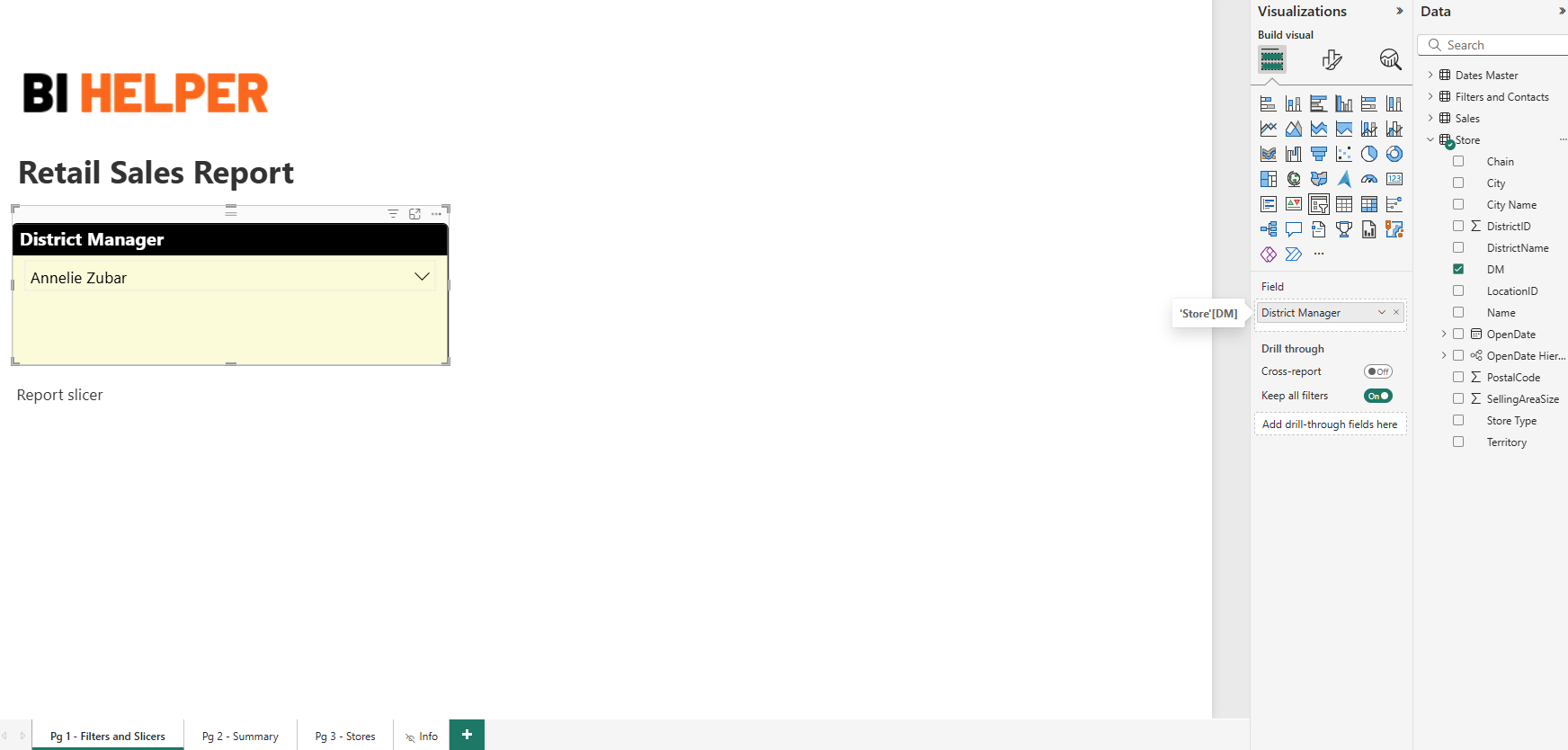
You can schedule and automate your client reporting by using an automation tool that supports dynamic filtering. In BI Helper, you can download an Excel template, input your clients' email addresses alongside their respective slicer and filter values, and upload the file back into the application. BI Helper automatically loops through this list, applies the correct filters, generates a distinct PDF or PPTX file for each client and emails them on schedule.
You can schedule your reports to run daily, weekly, monthly or on any custom frequency. BI Helper delivers highly secure and scalable Power BI reporting automation.
When evaluating large-scale report distribution, prioritize platforms that decouple report generation from per-user Microsoft licensing. Remember, report recipients only need a snapshot on a regular schedule; they don't have the time or the need to log in to Power BI to query and analyze their data.
Let’s say you want to send 500 personalized, filtered monthly KPI reports as PDFs to your customers.
An automation platform like BI Helper opens your Power BI report in read mode, applies slicers and filters dynamically for each recipient to generate user-specific PDF or Power Point files and emails them on schedule or on demand. End-users only need an email address; they do not need Power BI licenses.
BI Helper is built using serverless architecture and scales seamlessly to handle large volumes of data and users. This makes it highly effective in sharing information with external users – billing data, SLA reports, vendor ratings and so on. Only the sender must have one BI Pro license ($14/mo). This saves organizations thousands in licensing fees every month when compared to the native Power BI options.
Power BI Pro limits content sharing to other Power BI Pro licensees, regardless of whether they are internal or external to your organization. PPU (Premium Per User) licenses follow the same restriction; you can share with external users, but only if they hold a PPU license. To use native subscriptions to email multi-page reports as PDFs, the workspace must be in a PPU or Premium capacity.
Note that all this covers only report distribution. Automating it has more technical and admin overhead, as noted above.
To securely generate and distribute Power BI reports, verify that your distribution tool uses strong encryption and complies with data standards.
Power BI natively applies sensitivity and privacy labels directly to the email attachment.
BI Helper is SOC 2 Type 2 compliant and uses AES 256 encryption during PDF generation. Additionally, BI Helper enables you to set up DMARC compliance to authenticate your sender email, which prevents the reports from being flagged as spam by external recipient firewalls.
Natively, no. Both the sender and the external recipient must have a Power BI Pro or PPU license unless the report is hosted in a Premium capacity. Third-party tools like BI Helper bypass this by opening the report in embedded mode, applying filters, generating PDFs and sending them as standard email attachments.
This action fails if your Power BI tenant does not have at least one workspace backed by a reserved Premium capacity.
BI Helper recommends that users authenticate their sender email IDs to make them DMARC compliant. This is done by adding a sending subdomain in the settings, ensuring that the sent emails successfully navigate recipient firewalls and spam filters.
External sharing in Power BI typically refers to sending a direct read-only access link or subscription to a specific report to someone outside your domain.
A Power BI guest user is a specific identity managed via Microsoft Entra Business-to-Business (B2B), who is formally invited into your organization's Azure Active Directory and can be assigned workspace roles.